Connect a check with your AI
Tap Add with my AI on a check. One panel walks you through it, and the last step turns green by itself when the check is live.
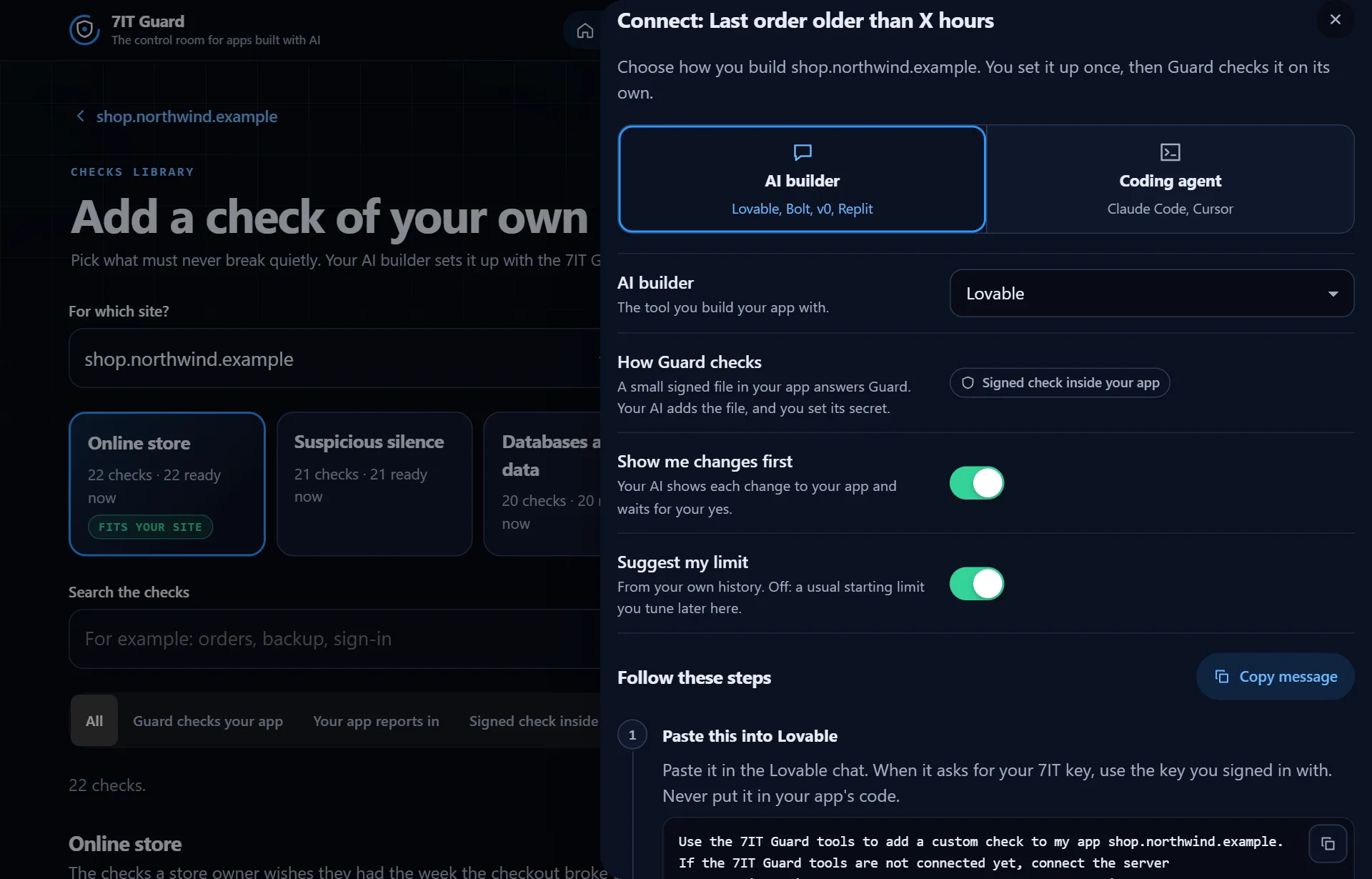
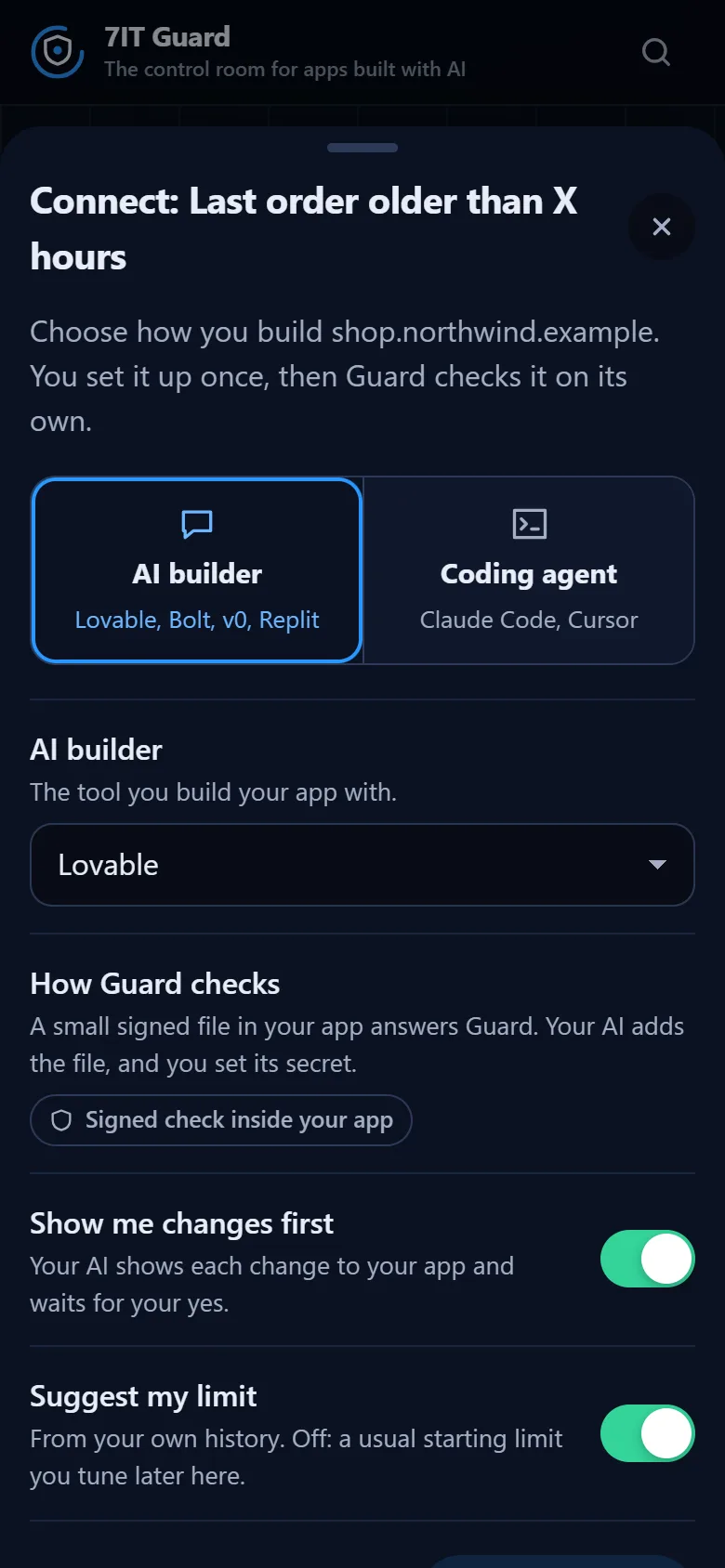
1. Choose how you build
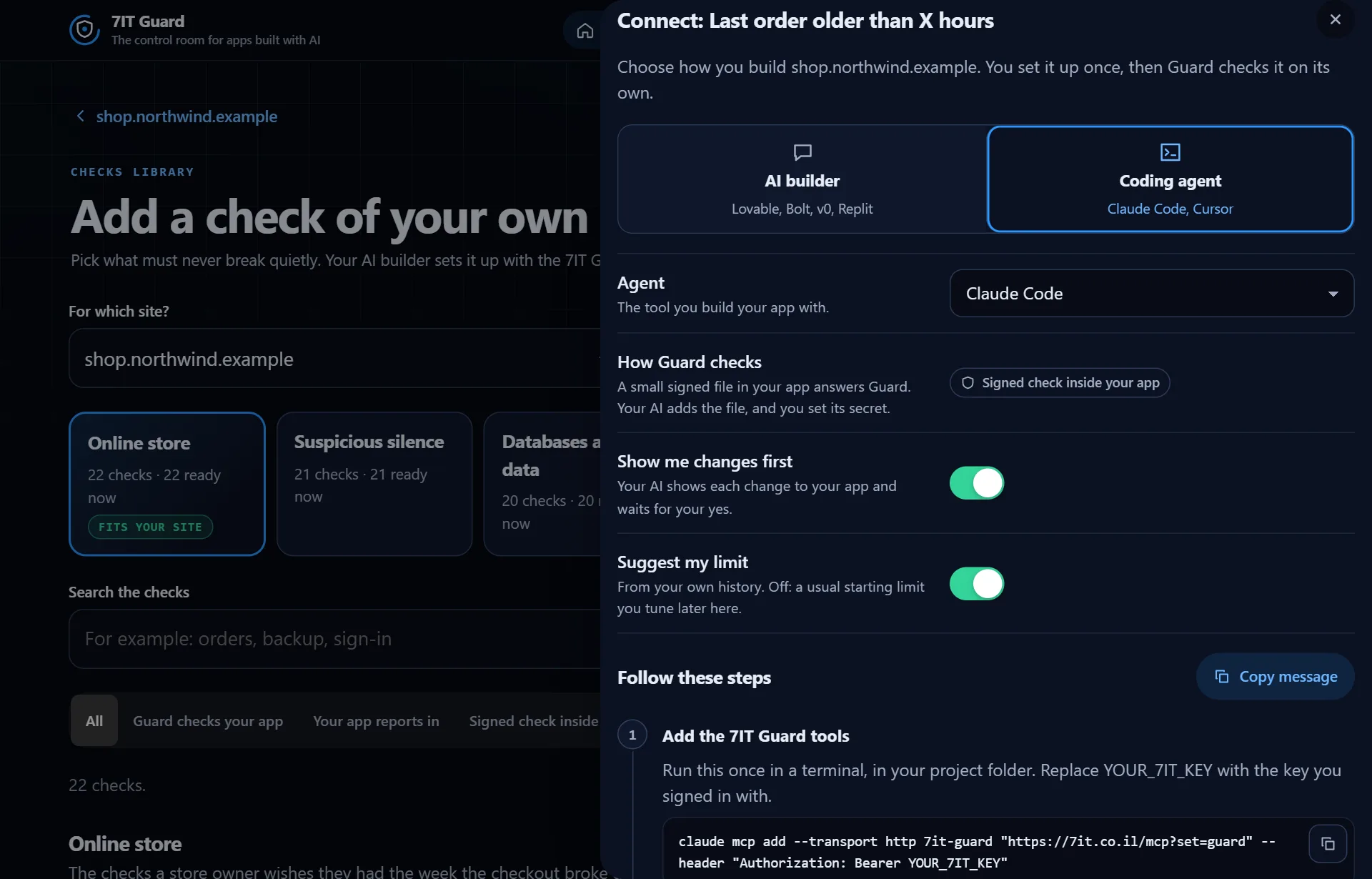
Pick AI builder if you build in a chat like Lovable, Bolt, v0 or Replit. Pick Coding agent if you use Claude Code or Cursor. Then choose your tool: the steps and the message follow it.
2. Set the options
- How Guard checks: one sentence on how this check works.
- Show me changes first: your AI shows each change to your app and waits for your yes. On by default.
- Suggest my limit: your AI suggests the limit from your own history, like how long you usually go between orders. Off: a usual starting limit you tune later in the app.
3. Follow the numbered steps
Each step has its own copy button. With a coding agent, step 1 adds the 7IT Guard tools once: for Claude Code a single command, for Cursor a short setting. Replace YOUR_7IT_KEY with your key, and never put the key in your app's code.
4. Watch it turn green
Paste the message and approve the limit in the chat. The last step waits, then shows the check as added and, at its first result, Connected. You set it up once: after that Guard checks on its own schedule, and nothing depends on your AI or your session.
More in Checks of your own
| Find a check in the library | Checks of your own watch what matters to your business: new orders, sign-ups, a nightly backup, a payment service. They come with Guard Solo and Guard Pro. |
| Your check's page: limit, test, pause | Each check has its own page with 90 days of history, its limit and every control in one place. |