Start from Help
Help checks your sites again from outside the moment you open it and lists only what it found on your sites. Or describe what you see in your own words, like "blank page", and the closest problems show.
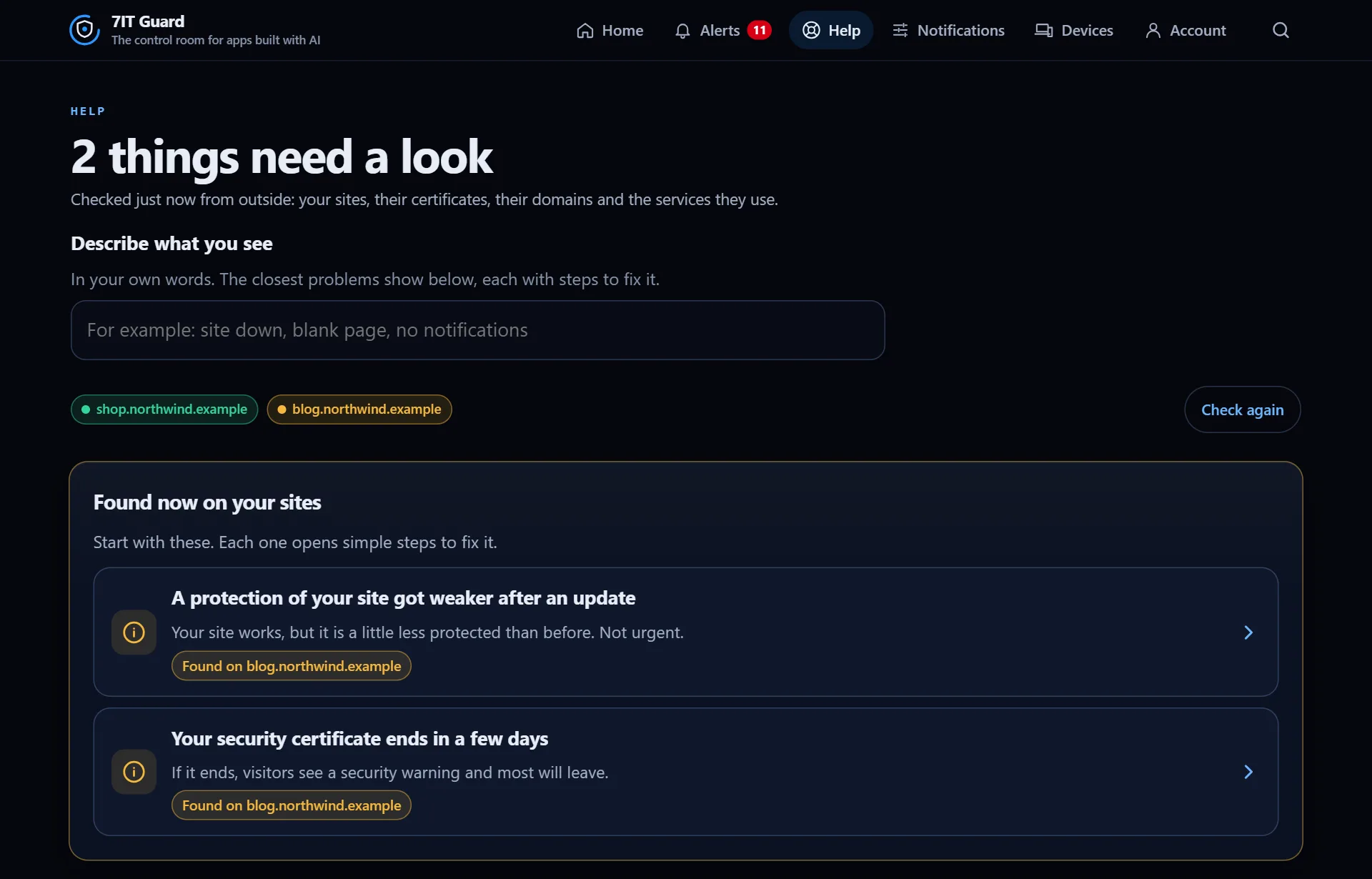
Follow the steps
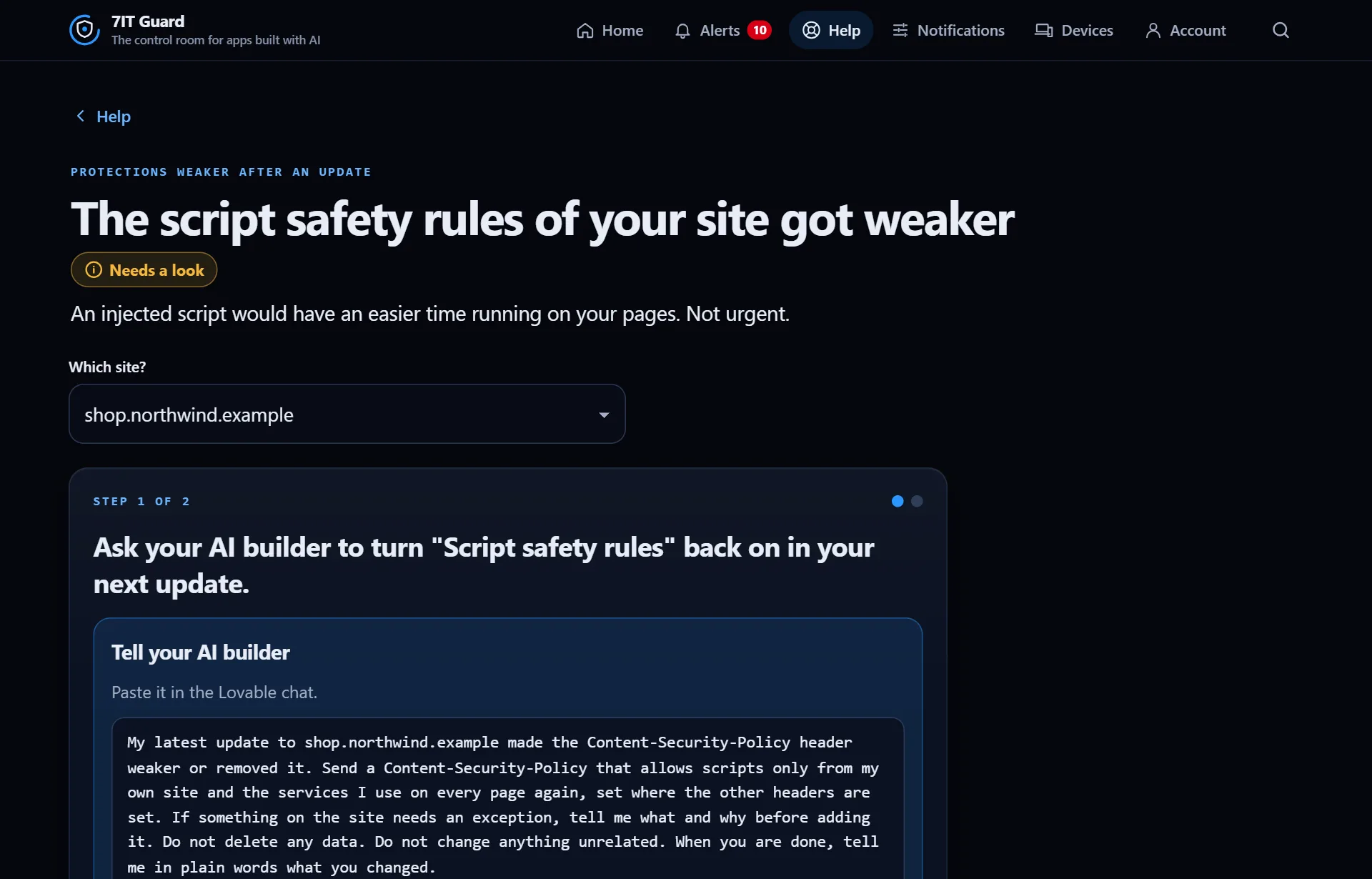
- Open the problem. The steps are written for someone with no tech background.
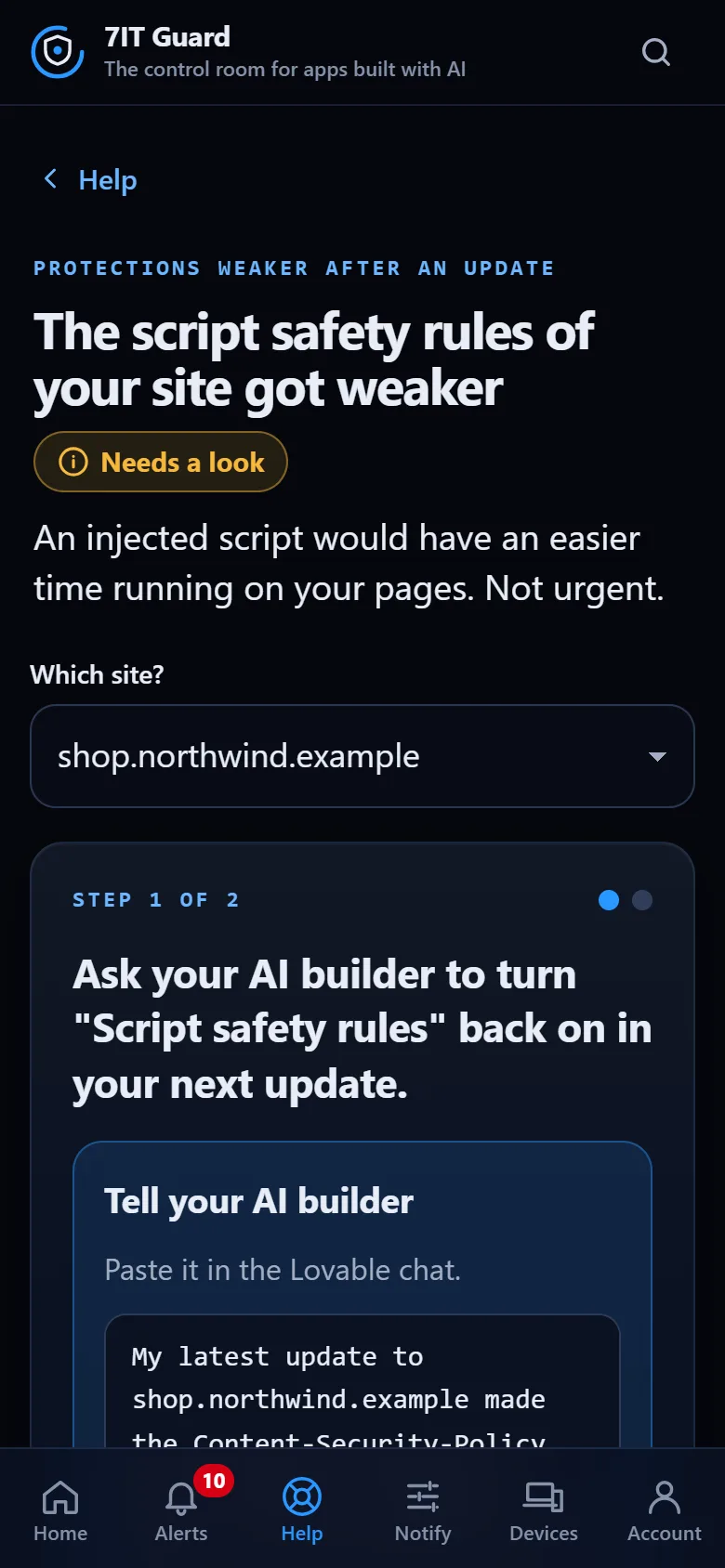
- Where a change is needed, copy the message under Tell your AI builder and paste it into your builder's chat. It names your site and says what not to touch.
- When the change is live, tap Fixed it? Check again. Guard checks right away and says if it worked.
Still stuck?
If a fix does not work, the flow asks a short question to narrow it down. The last step offers a request to a senior engineer. It is a paid service: you get the details and the price first, and nothing is charged before you agree.
Next
Open the Guard app
Sign in with your 7IT key, or prove your site is yours and watch one site at no cost.